
Documentation Index
Fetch the complete documentation index at: https://pigeonholeapp.co.uk/docs/llms.txt
Use this file to discover all available pages before exploring further.
Assigning Forms
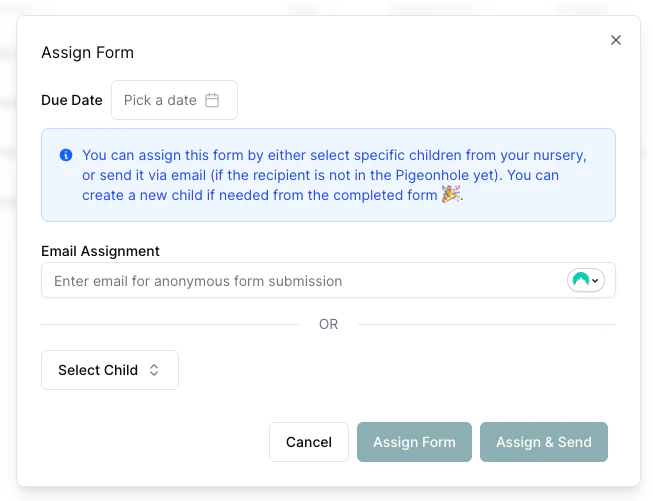
Once you’ve created a form, you need to assign it to specific children or staff before they can complete it. There are two ways to assign forms, plus a public URL option for forms accessible to anyone.From the Forms Settings Page
- Go to Settings -> Forms from the top right dropdown under your nursery
- Find your form in the list
- Click “Assign Form” under the additional options (…) for that form
From the Form Submissions Page
- Go to Form Submissions page
- Click the “Add Assignment” button
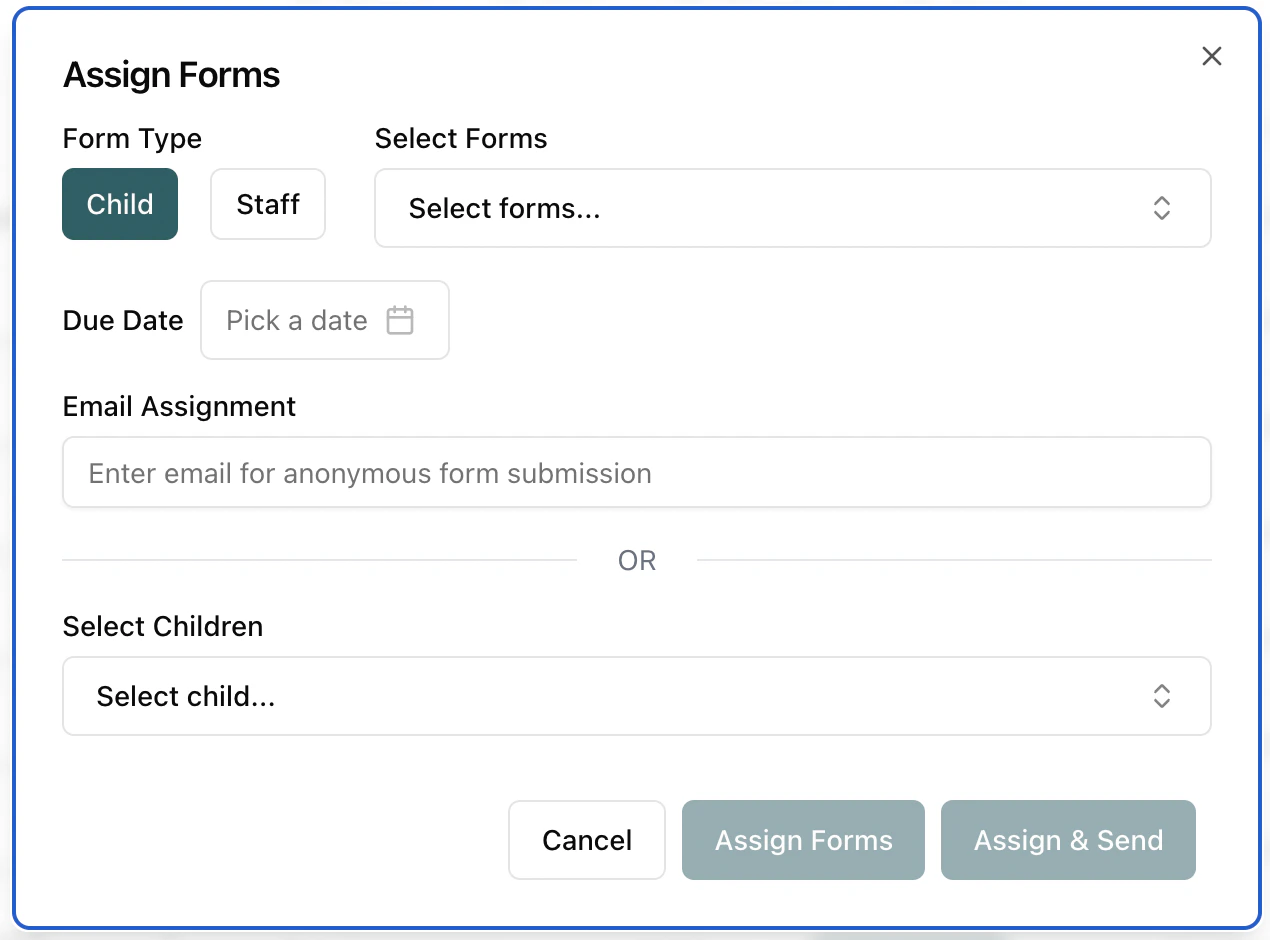
- The Assign Forms dialog will open
Assignment Options
From the assign forms dialog you can:- Select the form type — Child or Staff
- Select one or more forms to assign
- Choose recipients:
- Select specific children or staff members, or
- Enter an email address to assign anonymously (useful for pre-registration forms when the child hasn’t been created in Pigeonhole yet)
- Set a due date (optional) — when selecting a due date you also get the option to enable automatic reminders, which send notifications before the due date and when overdue
- Click “Assign Forms” to create the assignment, or “Assign & Send” to create it and immediately email the form link to the recipient
Anonymous email assignments and direct child/staff assignments are mutually exclusive — you can either assign to specific people or to an email address, not both at the same time.
Assigning Completed Anonymous Forms
When an anonymous form has been completed (either via email link or public URL), you can assign it to an existing child or staff member:- Go to the Form Submissions page
- Find the completed anonymous submission (shown with the submitter’s name and a wrench icon)
- Click the More Actions (…) menu
- Select “Assign To Child” or “Assign To Staff”
- Choose the child or staff member from the dialog